
Find your tone
For the exercises, you recreate your tinnitus tone with the tone generator. Choose a sound that resembles it, then adjust it a little at a time. This guide explains each setting.
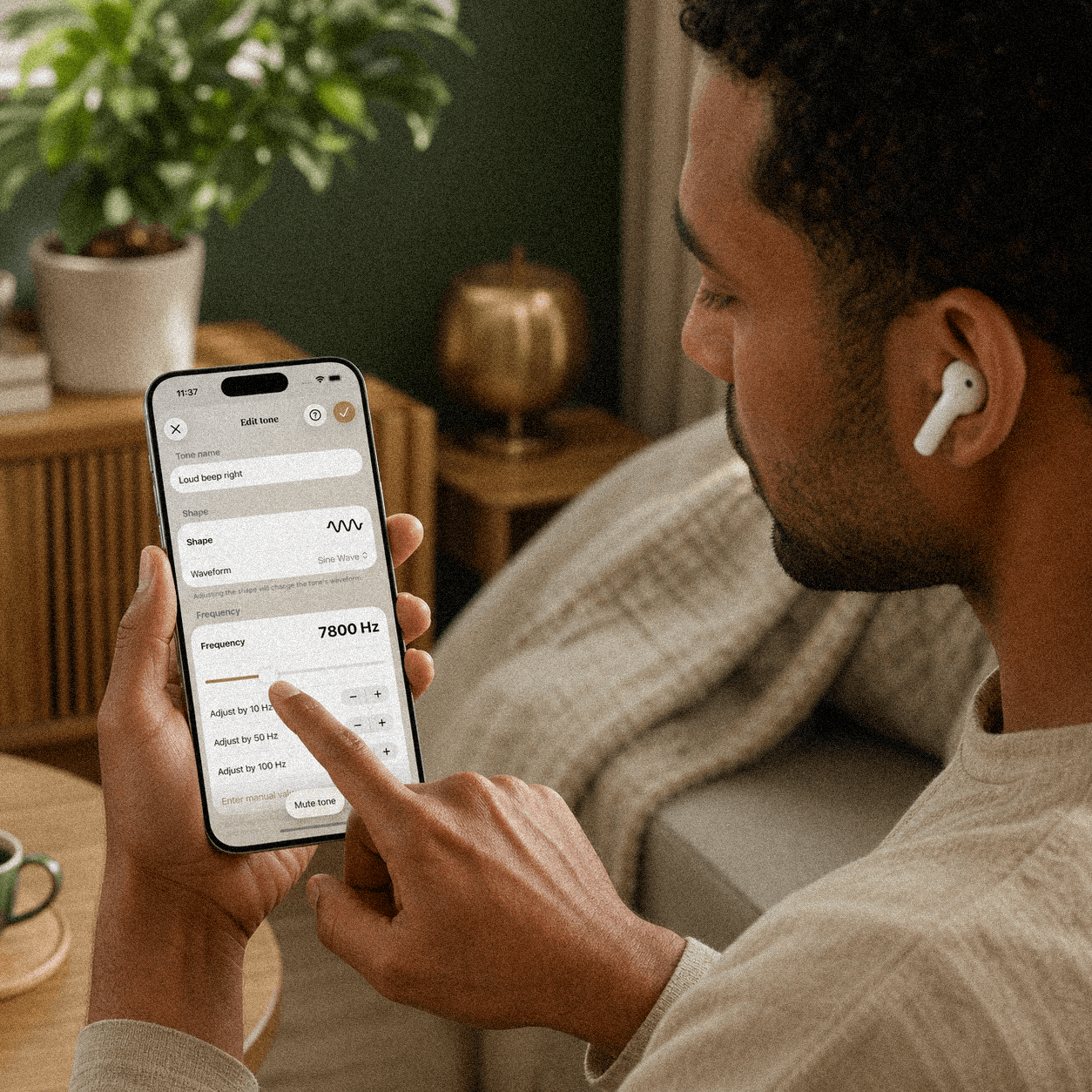

You will be practicing with a sound that resembles what you hear yourself. It is worth taking a little time to set it up. Look for a tone you recognize as your tinnitus; you will use it in your daily sessions.
The tone generator plays as you adjust the settings, so you can hear what each slider or button changes. Pause now and then to listen to your own tinnitus, and adjust the tone where needed.
Before you start
- Put on headphones, so you hear left and right separately
- Find a quiet room without background noise
- Start at a low, comfortable volume
- Pick a moment when your tinnitus sounds the way it usually does
- Take your time: ten calm minutes is enough
The step-by-step plan
Work through the steps in order, from the character of the sound down to the fine-tuning. Together they take about ten minutes.
The shape
Pick the shape that comes closest to your sound.
Every tinnitus has its own character. The tone generator offers eleven shapes across two families: waveforms for beeps and whistles, and noise variants for hissing, rushing, and humming. The shape plays live while you choose, so you hear every difference right away. The shape also determines which settings you fine-tune next.
How to approach it
- Hearing a beep or whistle? Start with the sine wave, the most chosen shape
- Does your tone sound sharper, buzzing, or electric? Try the square or sawtooth wave
- Hearing noise with a clear pitch? Choose narrowband noise
- Is it a broad hiss without a clear center? Compare the noise colors, from dark to bright
The frequency
Find the pitch, from coarse to fine.
For waveforms and narrowband noise, you set the frequency: from 0 to 25,000 Hz, precise down to the hertz. Work from coarse to fine: sweep the main slider until you're in the neighborhood, then refine with the 100, 50, and 10 Hz steppers. For most people, tinnitus sits in the higher range, often between 3,000 and 8,000 Hz.
How to approach it
- Sweep slowly from low to high and stop as soon as the tone starts to sound familiar
- Refine step by step: first by 100 Hz, then by 50, then by 10
- Do the octave check: if it sounds almost right, also try half and double your frequency
- Already know the value, for example from a measurement at your audiologist? Enter it manually
The loudness
Let the tone blend into your tinnitus.
The amplitude setting controls loudness. Look for the volume at which the recreated tone sounds about as strong as your own tinnitus. It does not need to drown your tinnitus out. Start softly and compare as you go.
How to approach it
- Start soft and build up until the tone is just as present as your tinnitus
- Use the mute button: switch between tone and silence and compare against what you hear
- Does the tone clearly rise above your tinnitus? Then it's set too loud
The place
Put the sound where you hear it.
Tinnitus doesn't sit in the same place for everyone: left, right, in both ears, or somewhere in the middle of your head. The balance control distributes the tone across your ears, so it seems to come from the same direction as your own sound.
How to approach it
- Hear your tinnitus mostly in one ear? Slide the balance that way
- Is it in the middle of your head, or in both ears? Leave the balance centered
- Close your eyes and listen: does the tone come from the same direction as your tinnitus?
The eleven shapes
Eleven shapes, two families. Waveforms have a clear pitch; noise sounds like hissing or rushing. Not sure? Just listen through them. You can always switch.
Waveforms
For tinnitus with a clear pitch: a beep, whistle, or hum.
Sine wave
A pure, round tone without overtones. By far the most chosen shape: the classic beep or whistle.
Square wave
Hollow and buzzing, with an electronic edge. Fits tinnitus that sounds like a hum or buzzer.
Sawtooth wave
Sharp and piercing, rich in overtones. For shrill, penetrating tones with a raw character.
Triangle wave
Softer than a sawtooth wave and a little fuller than a sine wave. Try this if a pure tone sounds too thin.
Noise
For tinnitus that hisses, rushes, or hums, from dark to bright.
Narrowband noise
Noise concentrated around one adjustable pitch, the audiology standard for tinnitus matching. For hissing or rushing with a clear center.
White noise
All frequencies equally strong, like an old radio between stations. For a broad, even hiss.
Pink noise
Softer in the highs, like steady rain. For a hiss that sounds warm and round.
Brown noise
Deep and rumbling, like a distant waterfall. For a low hum or dark rushing.
Grey noise
Corrected for human hearing, so every frequency band feels equally loud. For a hiss that seems equally strong everywhere.
Blue noise
A bright hiss with the emphasis on high tones. For a light, sharp hiss.
Violet noise
Almost exclusively high frequencies, the sharpest hiss of all. For a very high, fine sizzle.
Fine-tuning
Does the sound resemble your tinnitus, but still feel a little off? Try these tips.
Combine multiple tones
Hearing a beep and a hiss? Create a separate tone for each sound and enable them both. With 'Preview tones' you'll hear the mix, exactly as it will sound in your exercises.
Compare with the mute button
While you're editing, your tone plays continuously. Mute it for a moment, listen to your tinnitus, then bring it back. Switching back and forth reveals exactly where the difference still sits.
Take the hearing check
Tinnitus often sits close to the frequencies where your hearing has changed the most. The hearing check in the app gives you an indication of where to search.
Perfect isn't required
You are looking for a close match to your tinnitus. It does not have to be exact to the last hertz. Once the sound resembles it, you can practice with it and adjust it later.
Adjust your tone when it changes
Tinnitus can change from day to day or over time. Does your tone no longer fit? Adjust it or create a new one. You can keep tuning whenever you like.
Keep it comfortable
Louder isn't better. Always keep the volume at a pleasant level, and take a break if listening becomes tiring.

Get started
Download the app, recreate your own tone, and try your first exercise. The first 3 days are free.
Freequency complements your existing care and does not replace it. Use it in consultation with your audiologist or healthcare professional.